


How to organize pages in your flipbook?
Do you need to fix a page order, remove unwanted pages, or rotate incorrectly scanned content? Now you can do it without leaving Publuu!
Our new Organize Pages feature is designed to make editing your flipbook faster and easier. It lets you rearrange pages and make quick adjustments directly within Publuu, with no need to edit or re-upload your PDF every time.
Learn how to do it step by step here.
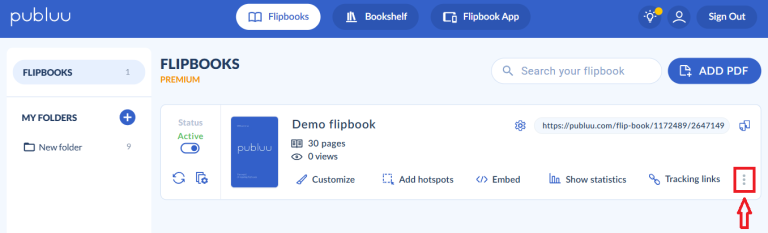
Go to the Flipbooks section in your Publuu account and find the publication you want to edit. Then, click the three-dot menu (⋮) on the right side of the flipbook card.
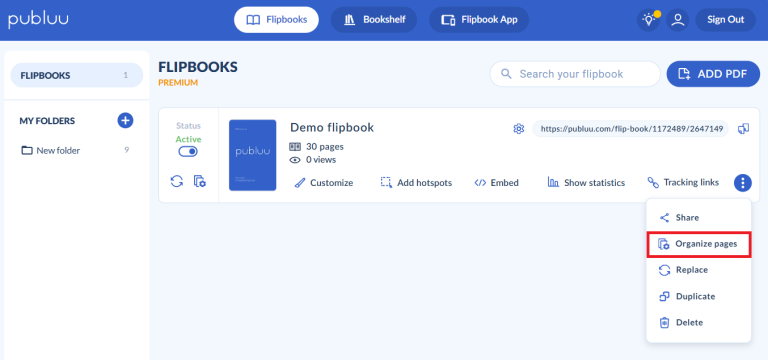
Select Organize pages.
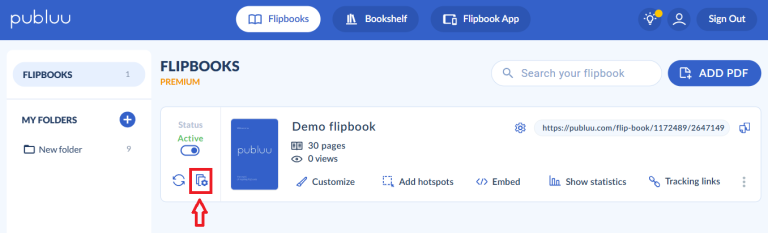
You can also click the Organize Pages icon on the left side of a flipbook to open the page organization view and start rearranging your pages.
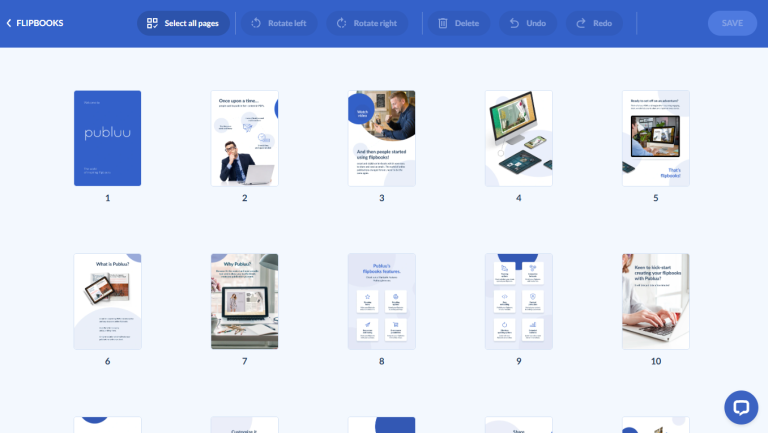
Now once, you are in the Organize Pages Mode, which is displaying all pages as thumbnails, you are given a clear overview of your entire document, making it easy to identify pages that need to be modified.
What can you do?
- You can add pages, rotate pages left or right or remove pages you no longer want in your flipbook.
- Organize pages option also lets you to select multiple pages at once, making it easy to apply changes to several pages simultaneously.
- If you make a mistake, you can simply use the Undo or Redo options to reverse or restore your recent actions.
- Then, once you're satisfied with the result, you can click Save to instantly apply all changes to your publication.
Rotate pages
Let's start with page rotation. To rotate a single page, select its thumbnail.
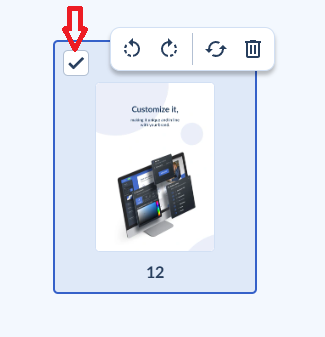
Then click one of the rotation icons (rotate left or rotate right) that appear above it.
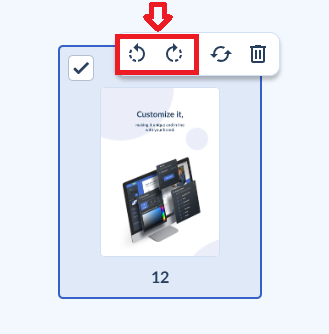
To rotate a page, you can also use the rotation buttons in the top toolbar.

Once you've done that, you can see that page 12 has been rotated to the right, for example.
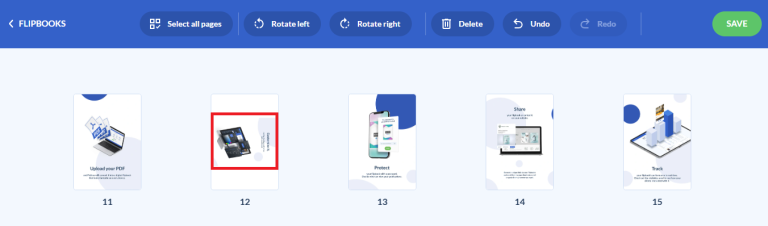
Then, click the green button save to apply the changes to your publication.

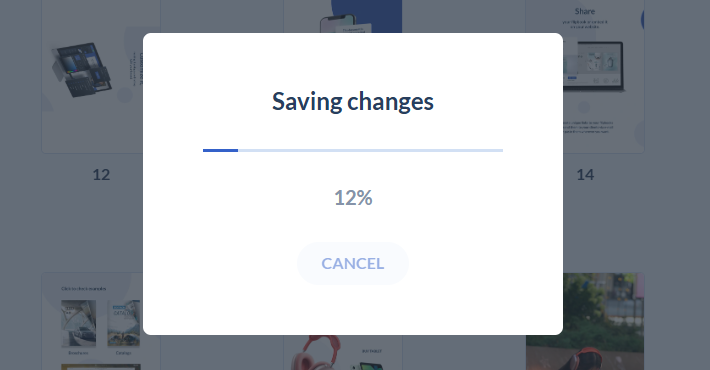
Then, wait for the changes to be saved.
In addition, you can turn multiple pages at once as well. Simply select the pages you want to adjust by clicking on each page thumbnail.
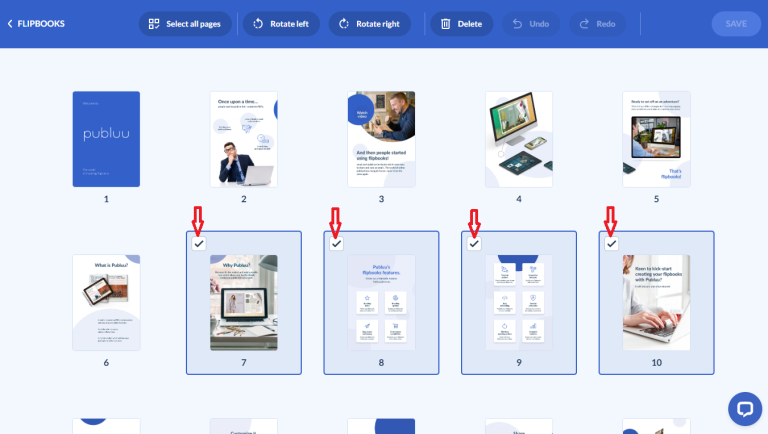
Then click Rotate Left or Rotate Right to change the orientation of all selected pages simultaneously.
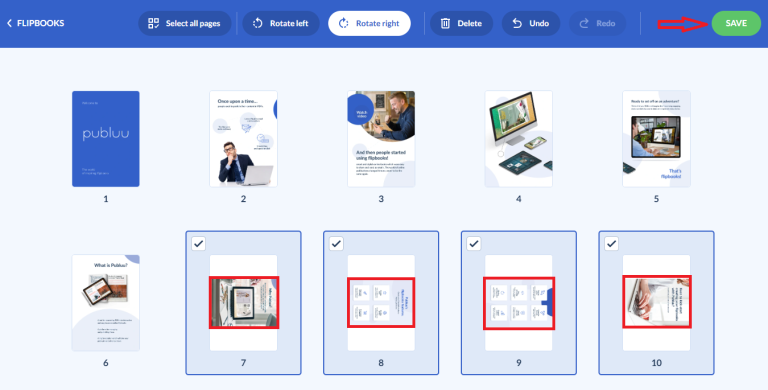
Once rotated, you can see that the pages are orientated accordingly. You can then click Save to keep the new page orientation.
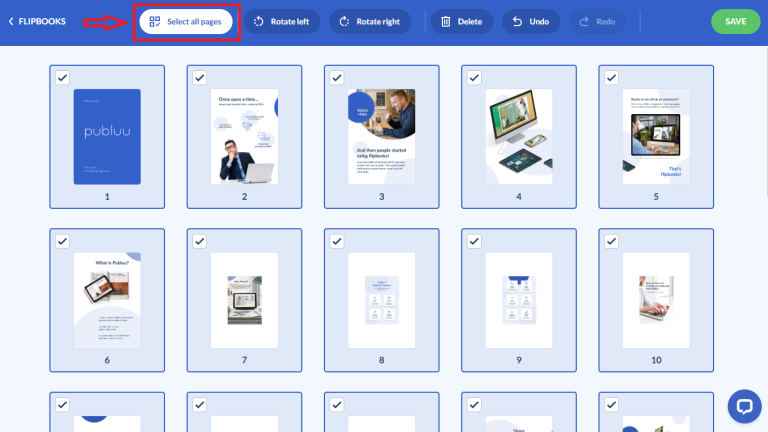
If you want to change the orientation of all pages in your document, you can quickly rotate them in just a few clicks too. First, click the Select all pages button in the upper panel to highlight every page thumbnail in the editor, as shown in the screenshot.
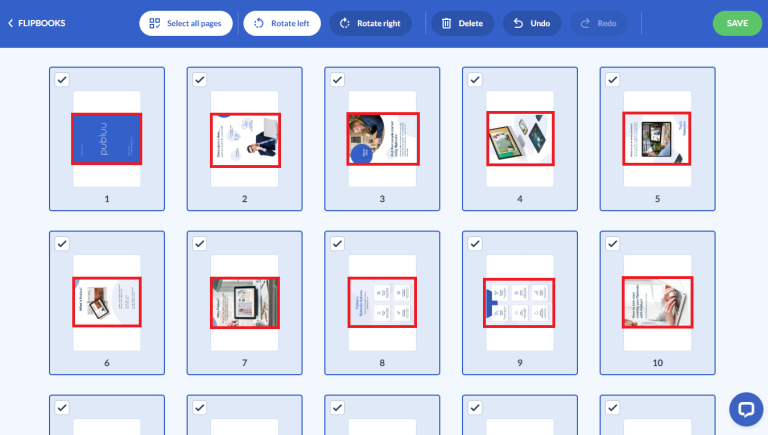
Once all pages are selected, click Rotate left or Rotate right in the top toolbar.
All selected pages will immediately rotate 90 degrees in the chosen direction, making it easy to correct the orientation of your entire document at once.
Replacing pages
If you need to replace a page, click the page thumbnail where you would like to replace pages. For example, as shown in the screenshot, page 2.
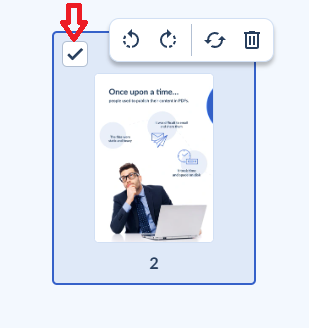
Once the page is selected, a small toolbar will appear above the thumbnail and then click the Replace icon as shown below to open the page replacement window.
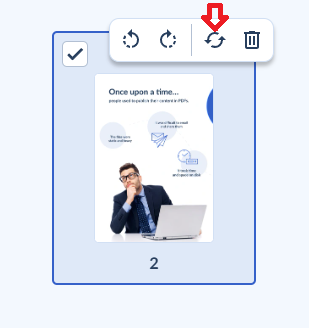
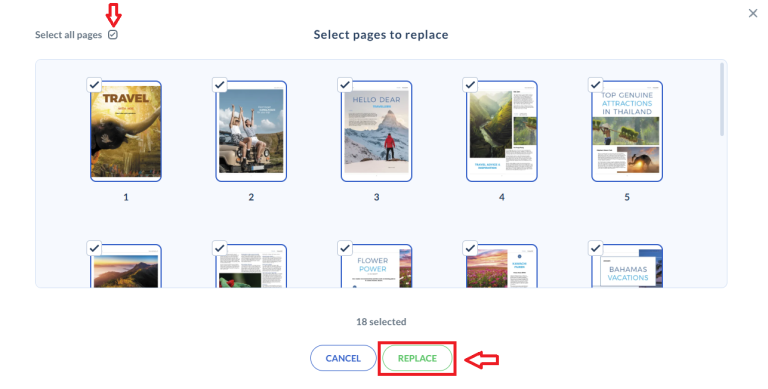
Then, choose a relevant PDF file from your computer. Once the file has been uploaded, a window will open displaying all pages available for replacement.
To replace a page, select the individual page you want to update by clicking its thumbnail, as shown in the screenshot (e.g., page 2). Once the page is selected, click Replace to replace it in your publication.
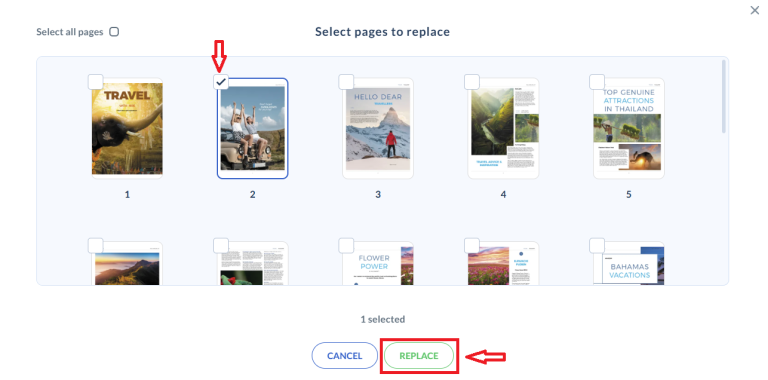
Now you can see that the selected page has been inserted into the chosen location, replacing the original page 2.
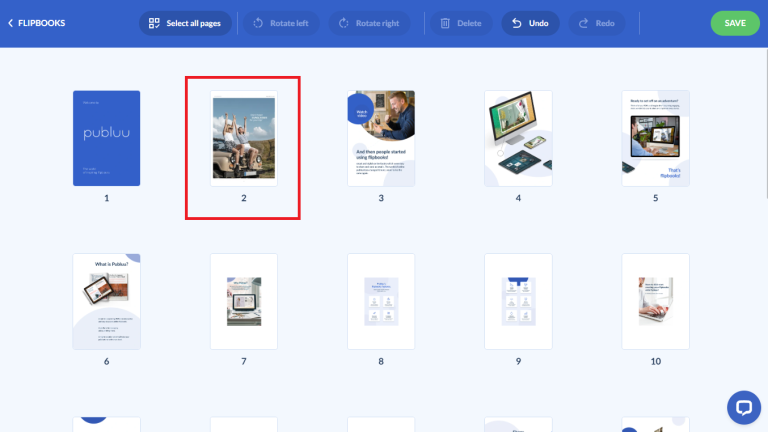
Once you are satisfied with the new arrangement, click Save in the top-right corner to apply the changes to your flipbook.
You can also select Select all pages to replace all pages at once. Once selected, click Replace to complete the process.
Undo and redo changes
If you make a mistake, you can use the Undo or Redo buttons in the toolbar to reverse or restore your recent changes.
Please note! These options are only available before you click Save.Once your changes are saved, you can no longer undo or redo them.

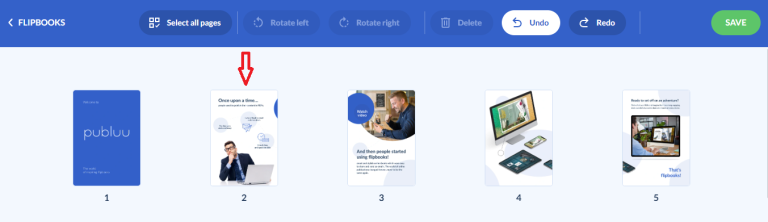
For example, if you click Undo after replacing a page, that replaced page will be removed.
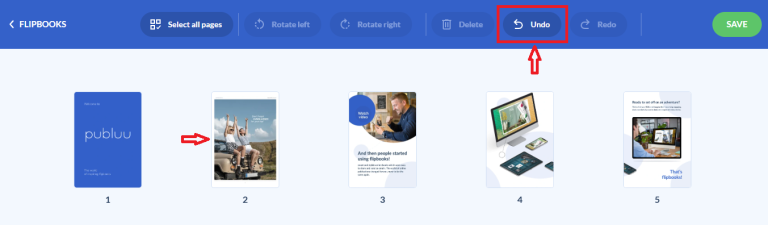
The previous version of the publication will be restored.
You can also click Redo to restore the replaced page if you decide to keep the changes after all.
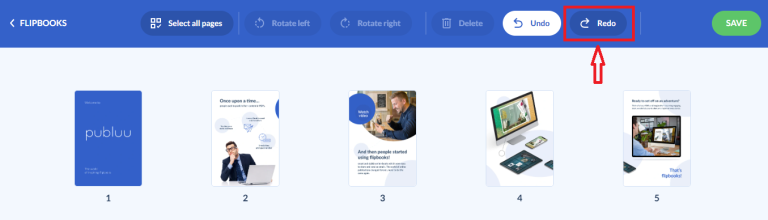
The inserted page will be resotred to its previous position in the publication.
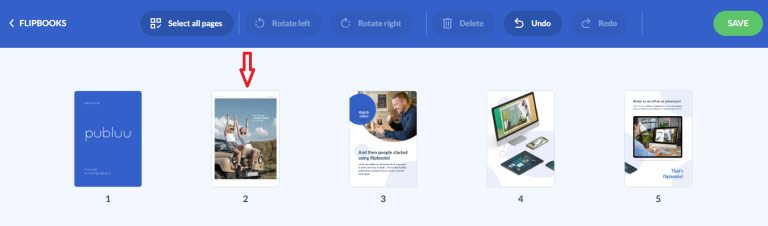
Please note that your updates are being saved instantly as you rearrange, rotate, or delete pages. There's no need to edit the original PDF, export a new file, or upload it again.
Once you're happy with the changes, click button Save.
Insert pages
If you would like to insert pages to your flipbook, you have to hover your mouse between any two pages where you want to add new content and then click the blue + button that appears on the divider line beween the pages (e.g. between page 3 and page 4).
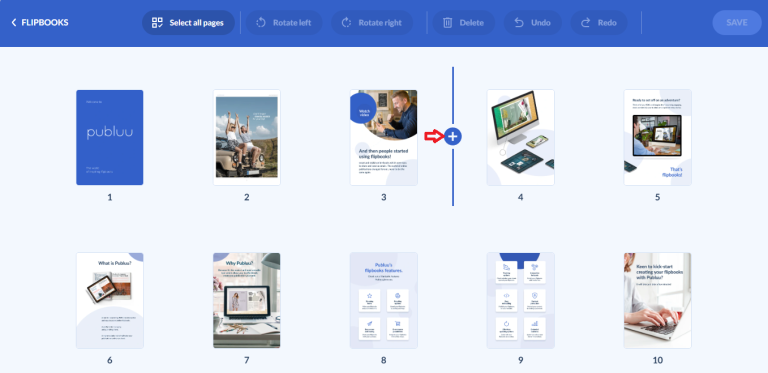
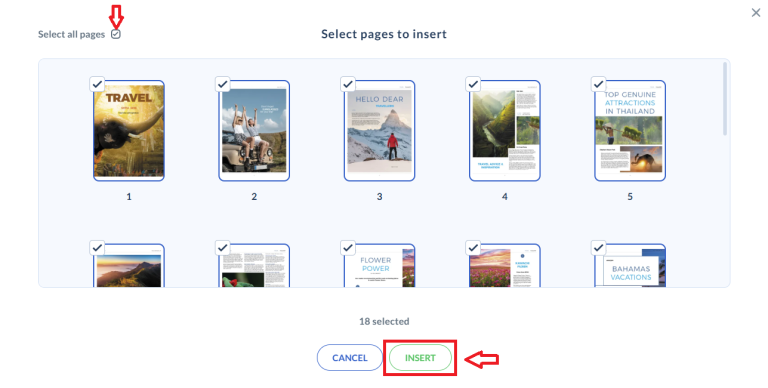
Then choose a PDF file from your computer that you would like to add and a management window will appear, letting you to insert pages from that file. If you only need to insert specific pages, select the ones you want by checking the small box in the left top corner and click the Insert button at the bottom of the window.
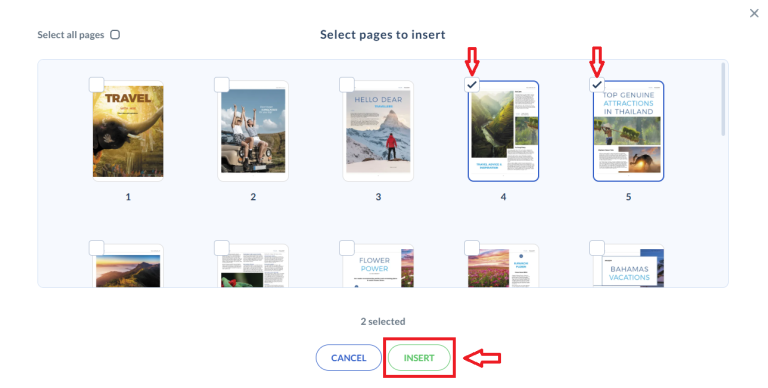
If in this case, you decide to insert several pages, (highlighted as pages 4 and 5) the selected pages will immediately appear in your flipbook at the location you chose. All existing pages will automatically shift forward to make room.
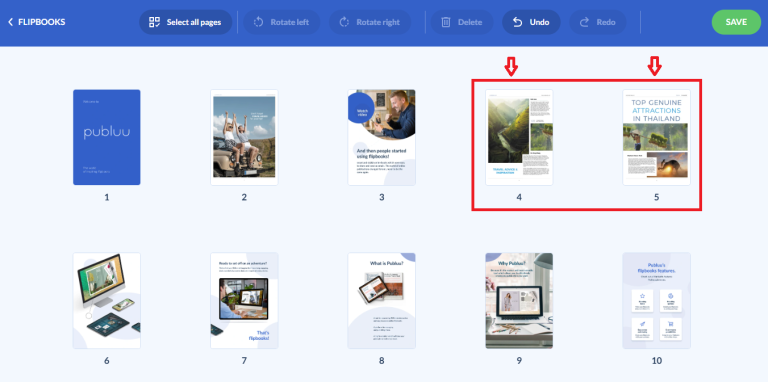
If you change your mind, you can use the Undo or Redo buttons in the top panel at any time, then click Save to confirm your changes. Please note that you can only undo or redo changes before saving. After you click Save, these options will no longer be available.

If you want to insert all available pages, check the Select all pages box in the upper-left corner above the thumbnails and click the Insert button as the final step. This will insert all pages from your current file to your existing publication.
Reorder pages
There is also an option to rearrange the order of your pages, giving you even more flexibility when organizing your publication.
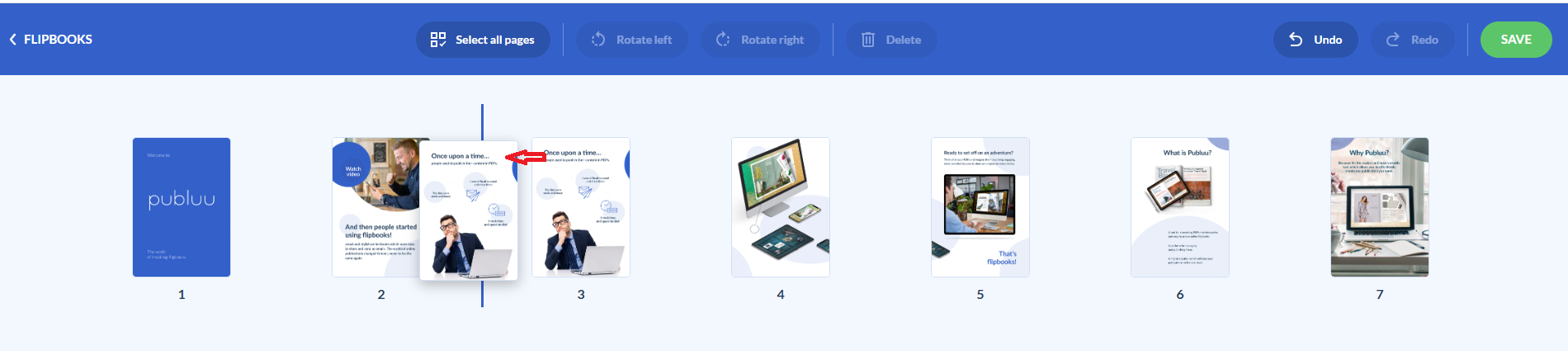
Simply drag and drop any page thumbnail to the position where you would like it to appear. For example, as shown in the screenshot, page 3 is being moved to the position of page 2.
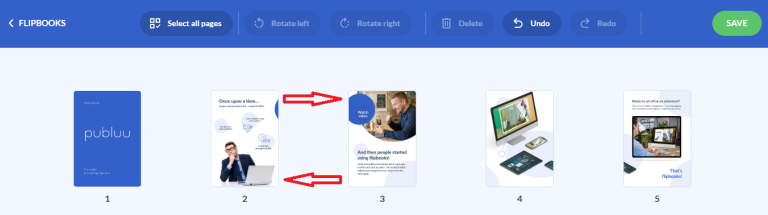
Once you release the mouse button, page 3 will move to its new location, while the original page 2 will automatically shift to the next positions. When you're happy with the new page order, click Save to apply the changes to your flipbook.
Delete unwanted pages
If you want to remove a page or simply shorten your catalogs and reports, this option can be very useful. You can delete a single page or multiple pages.
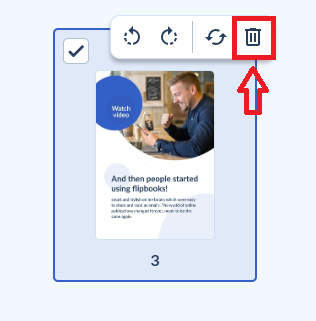
For a click removal of a single page, click its thumbnail and select the trash icon from the floating menu above it.
You can also erase a page by selecting it and clicking the Delete button in the main toolbar, as shown below.
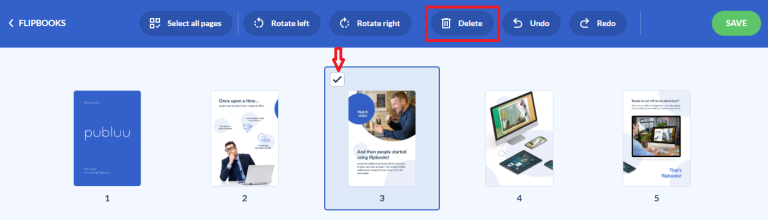
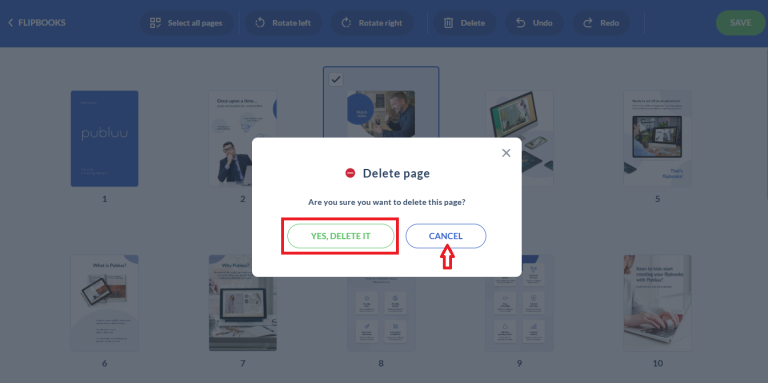
After clicking the Delete button, a confirmation window will appear, asking you to confirm whether you want to delete this page or selected pages. Click Yes, Delete It to eliminate chosen page/s, or Cancel if you would like to keep them and return to the organize pages mode.
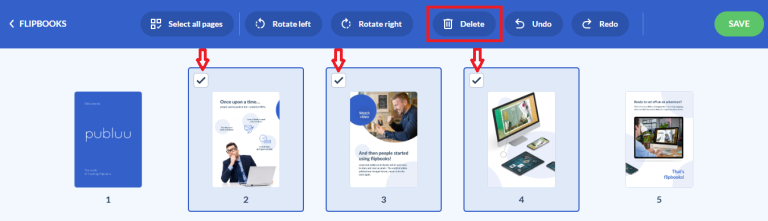
If you want to delete multiple pages at once, select the checkbox on each page thumbnail and then click the Delete button in the top menu.
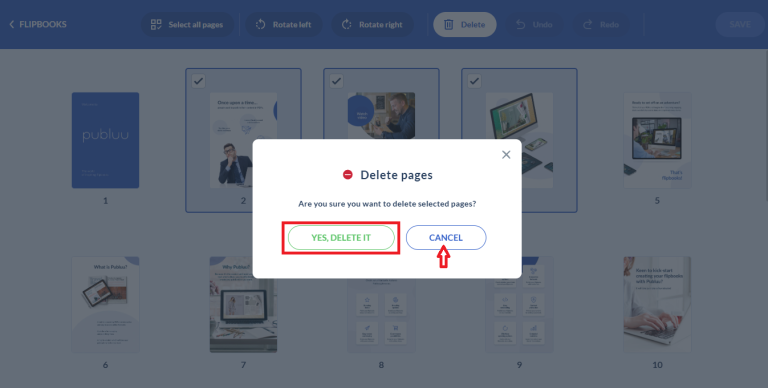
The same confirmation window will appear, asking whether you want to delete the selected pages. Click Yes, Delete It to confirm or Cancel if you've changed your mind and want to keep the pages.
And that's it! You've successfully finished organizing your pages.
The Organize Pages feature is created to make everyday editing much easier. Whether you're having catalogs, brochures, magazines, reports or presentation, you can now make quick page adjustments directly in Publuu. Instead of repeatedly returning to your PDF editor, you can easily manage your publication where it is already, saving time and keeping your publishing workflow effective and efficient.
You may be also interested in:
How to create folders?
How to replace my flipbook without changing its link?
How to duplicate my flipbook?
