


How to use the Wishlist feature?
Publuu's Wishlist (Shopping List) lets your readers save products from your flipbook as they browse. Once they've finished, they can send their wishlist directly to you, so you can contact them with more details, answer their questions, and provide a tailored quote or offer.
🎥 Prefer watching instead of reading? Check out the video tutorial:
How readers use the Wishlist
Here's how the Wishlist works from the reader's perspective:
1. They open your flipbook.

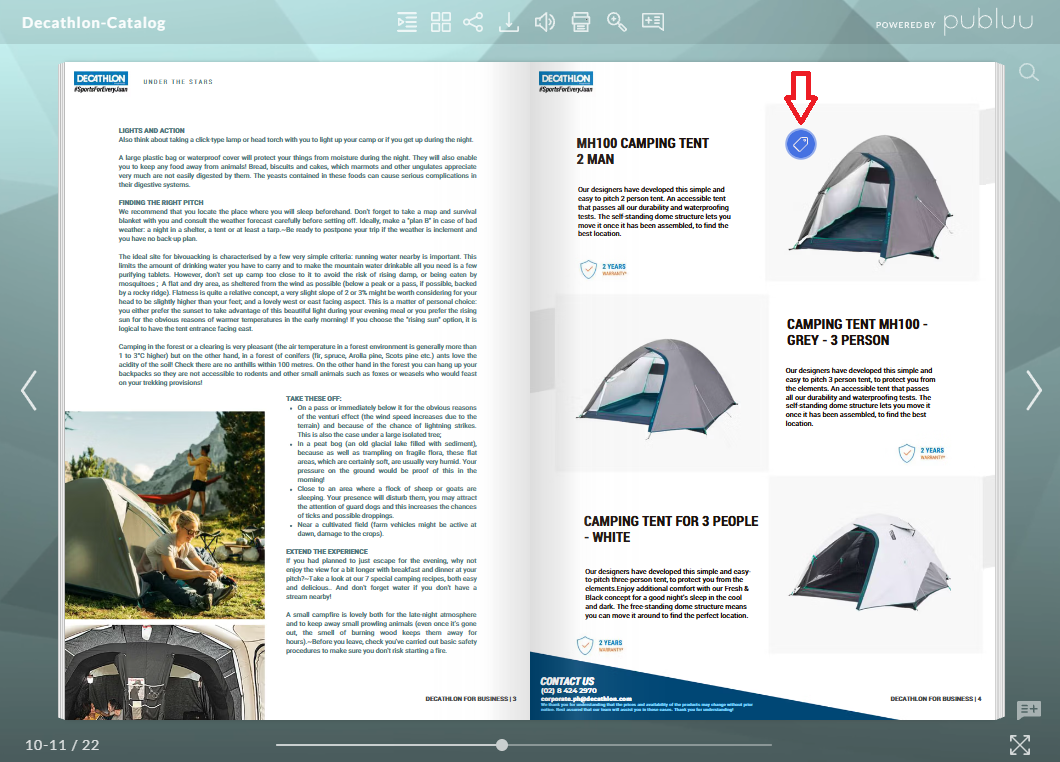
2. They click a product tag to view product details.
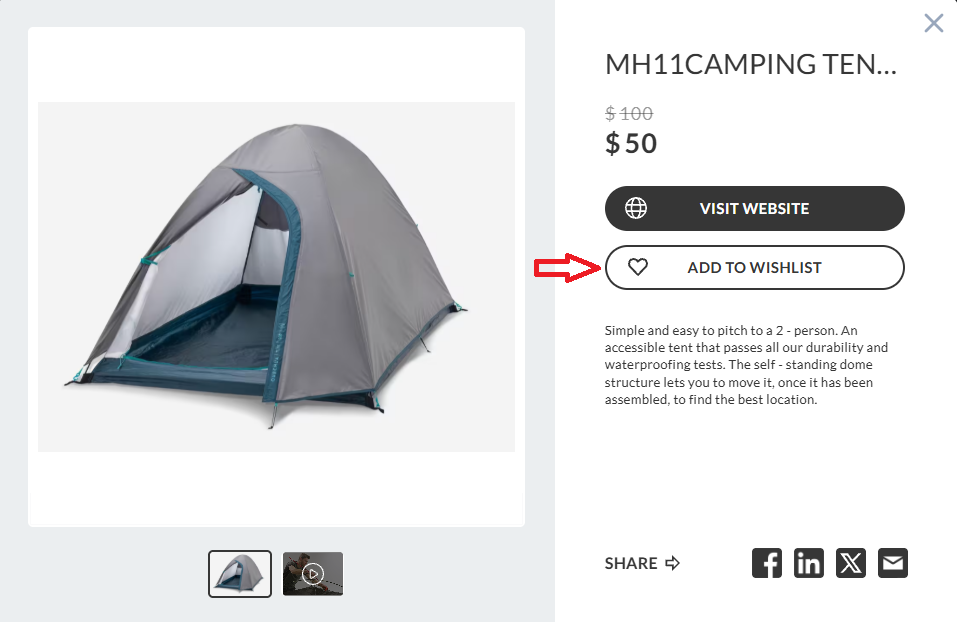
3. They press "Add to wishlist" to save the item.
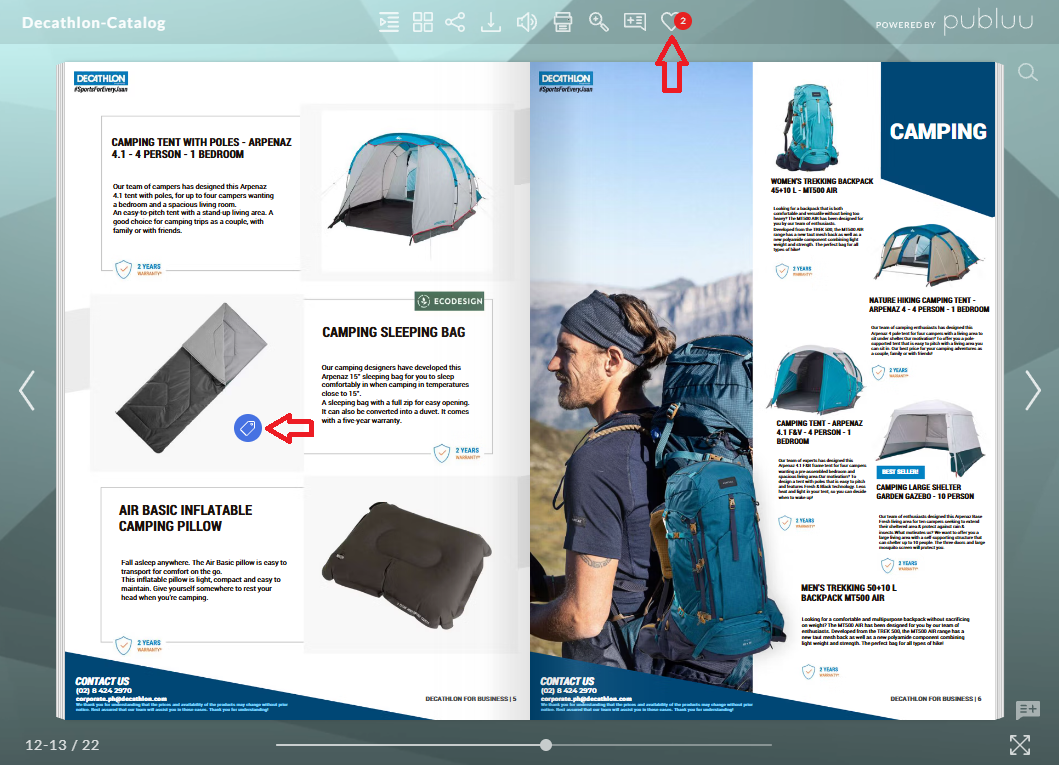
4. As readers browse your flipbook, they can add as many products as they like. The Shopping List icon displays the total number of selected items.
5. When ready, they open the Wishlist panel to review all saved items. You can also increase or decrease the quantity of the products you're interested in. You can remove items from your shopping list at any time.
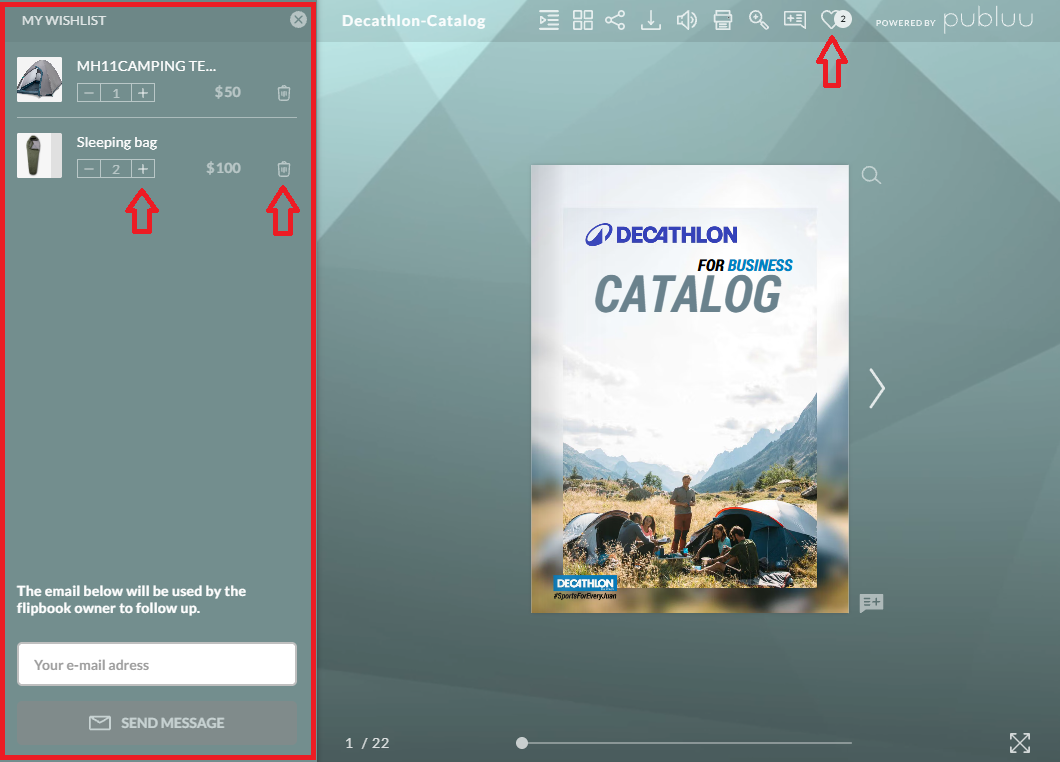
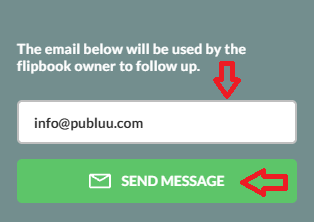
6. Readers enter their email address and send their shopping list to you. You can then follow up with more information about the products they're interested in.
What do you receive as a flipbook owner
When a reader sends their wishlist, you receive an email containing:
- Their contact details - email address.
- A list of all selected products with product names, prices, discounted prices, and quantities.
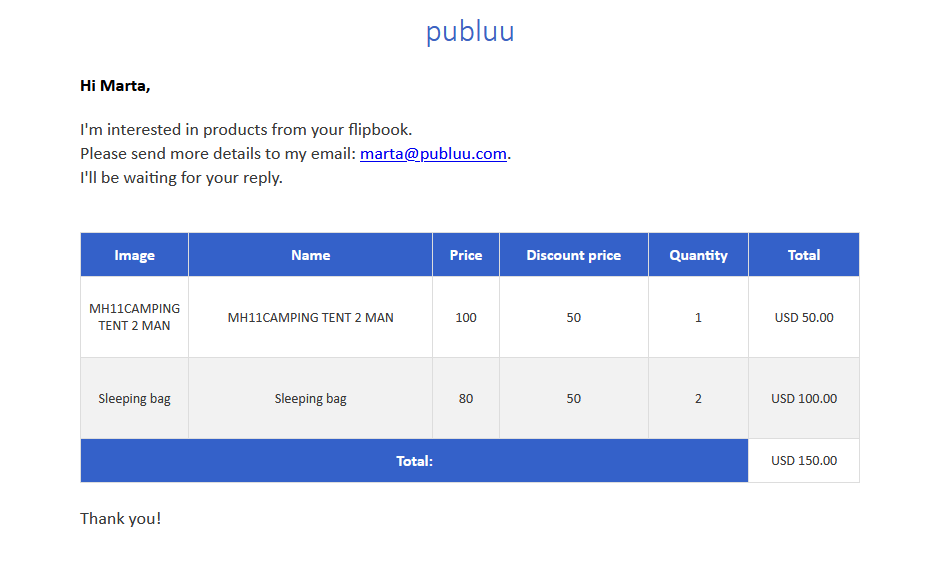
This gives you everything you need to follow up quickly and professionally.
What a reader receives
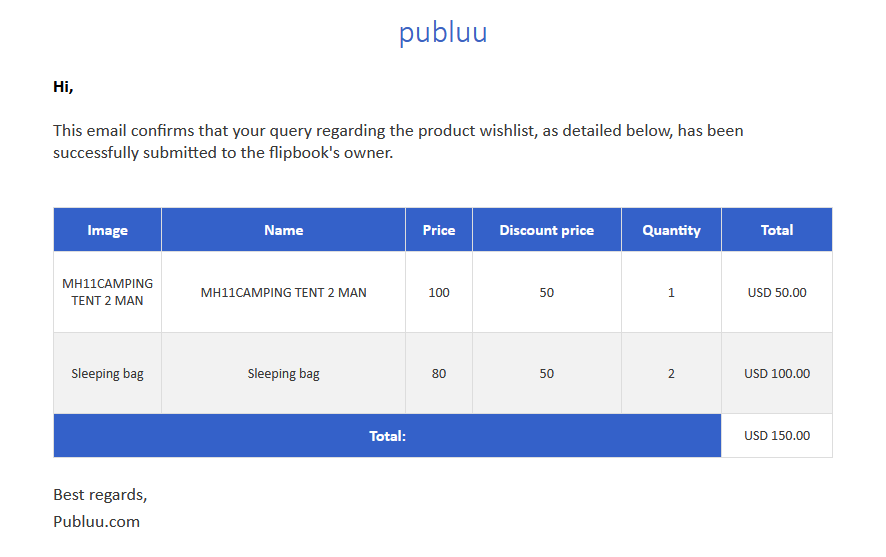
A reader receives an email confirmation containing the product name they selected, its price, discounted price, and the quantity they added to their wishlist.
How to disable the Wishlist
The Wishlist is enabled by default for every product tag.
If you want to turn it off:
1. Open your flipbook in Customize mode.
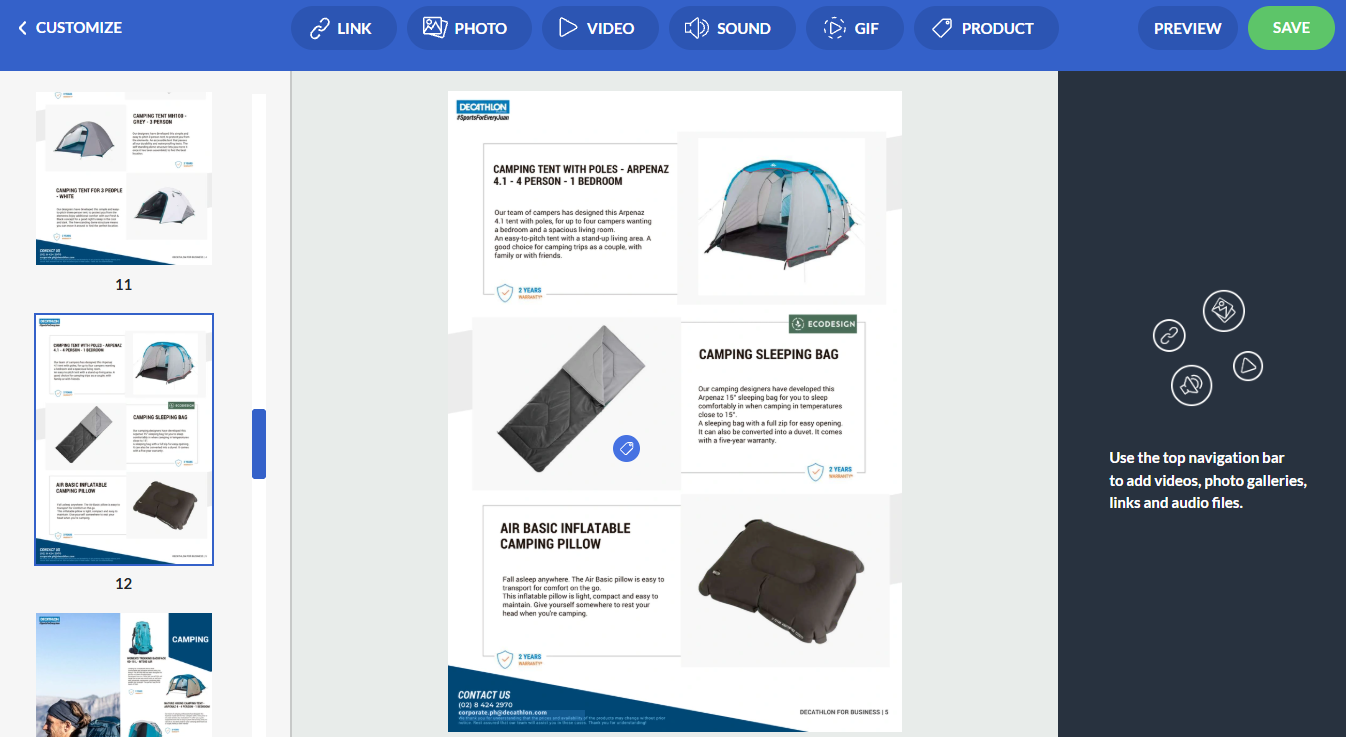
2. Select the product tag you want to edit.

3. Toggle off the "Add to wishlist" option. Slide the switch to the left, it will change from blue to grey, and then save the changes.

Once you do so, your Wishlist option will be disabled, but you can enable it again anytime you need by turning the toggle to the right so it turns blue again.
Key takeaways about the Wishlist feature
- The Wishlist works only with product tags.
- It is available starting from the Professional plan.
- Readers can send their wishlist only via email.
- You can add unlimited product tags, and each can be added to the wishlist.
The Wishlist feature makes it easier for your readers to save, review, and share the products they are most interested in, all without leaving your flipbook. By receiving a detailed list of their selected items – you can follow up quickly and efficiently. This creates better shopping experience for your audience and may help you turn interest into real sales opportunities.
You may be also interested in:
How to add product tags?
How to add photos to your publication?
How do you upload your video to a flipbook?
