


How to create folders?
Organizing your flipbooks has never been easier! With Publuu, you can create folders to keep your flipbooks tidy and easy to find. Whether you’re managing projects or simply want a cleaner workspace, folders help you stay organized. The best part? You can create as many folders as you want, with no limits on how many flipbooks each folder can contain. This feature is included in every plan. In this guide, we’ll show you step by step how to create and manage folders in Publuu.
🎥 Prefer watching instead of reading? Check out the video tutorial:
Firstly, log in to your Publuu account. Once you’re logged in, the main section in the center of the page will display all the flipbooks you’ve uploaded. On the left side of the screen, a blue tab shows the number of flipbooks which are currently in your main list. Just below it, you’ll find a section called My Folders.
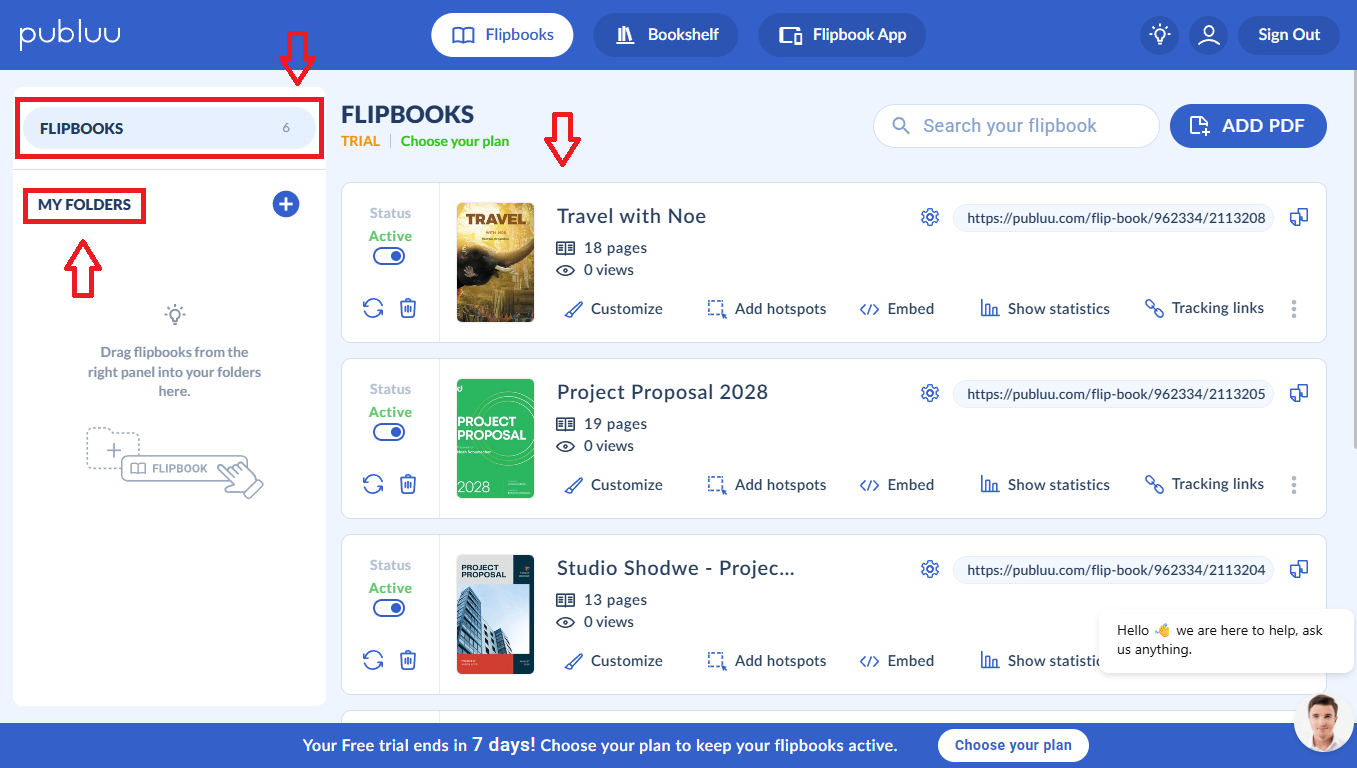
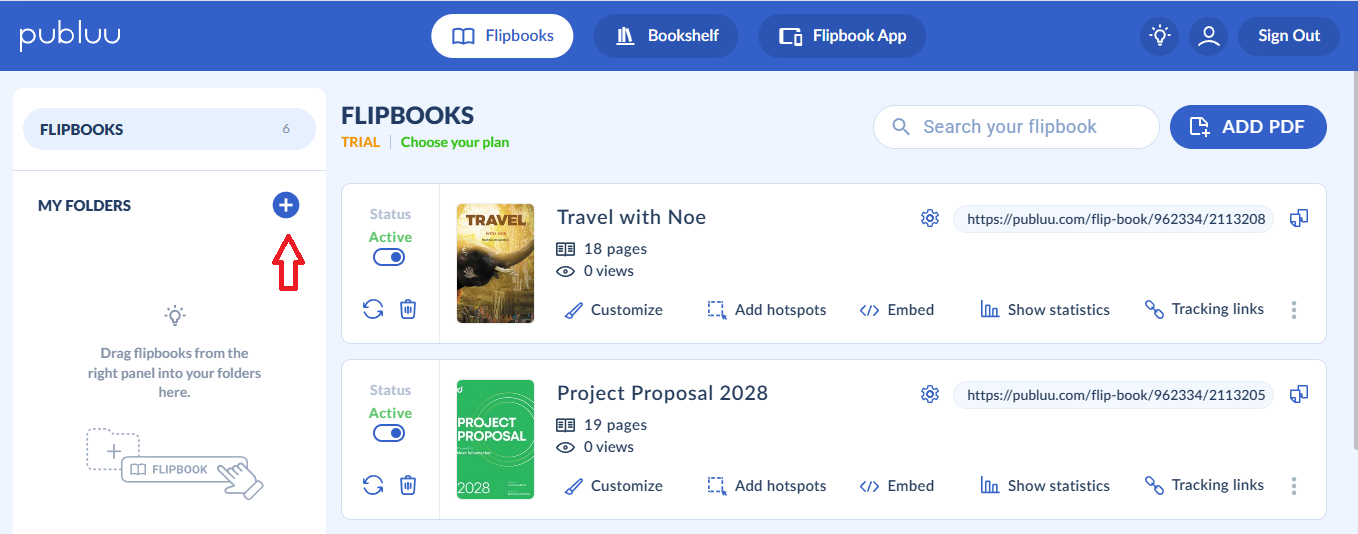
To begin, click the plus icon on the right to create a new folder.
Once the new folder is created, it will be named New folder by default.
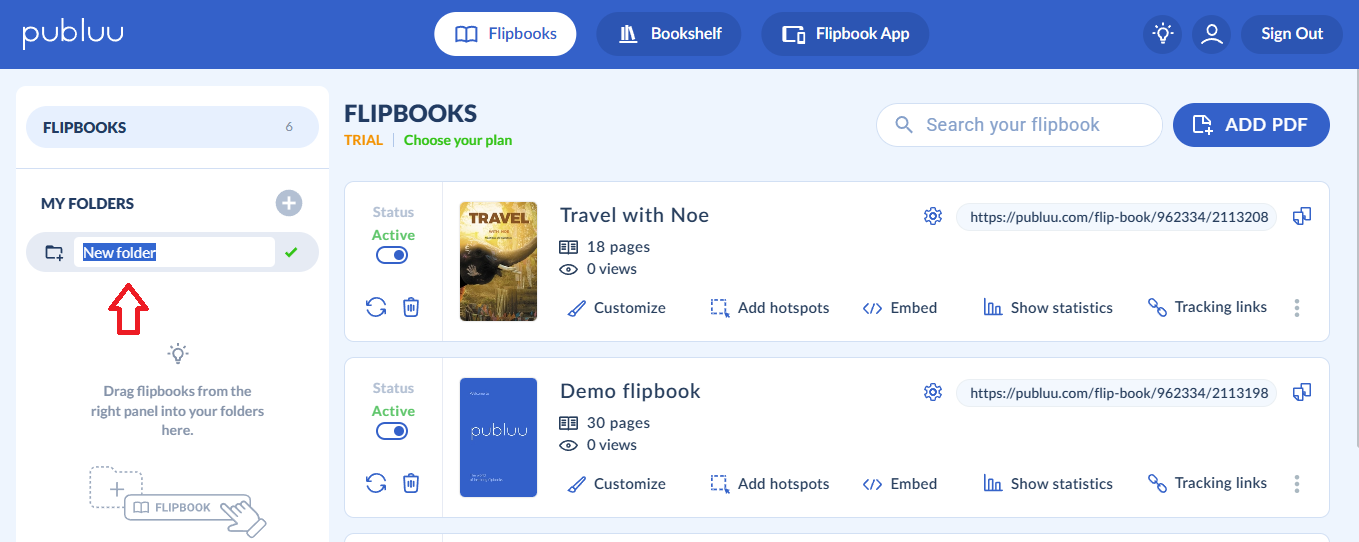
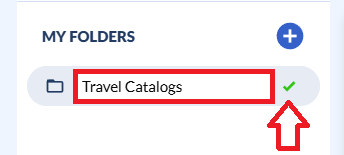
However, you can rename it by entering a new title in the tab and then saving the change by clicking the green check mark.
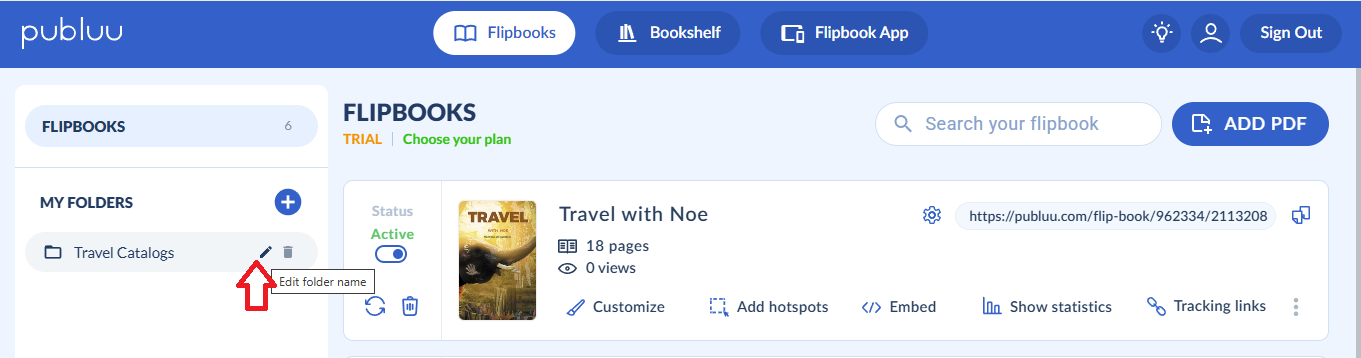
Later, you can also easily edit the folder name at any time by clicking the small pen icon. Once you’ve made the change, click the green check mark again to save it.
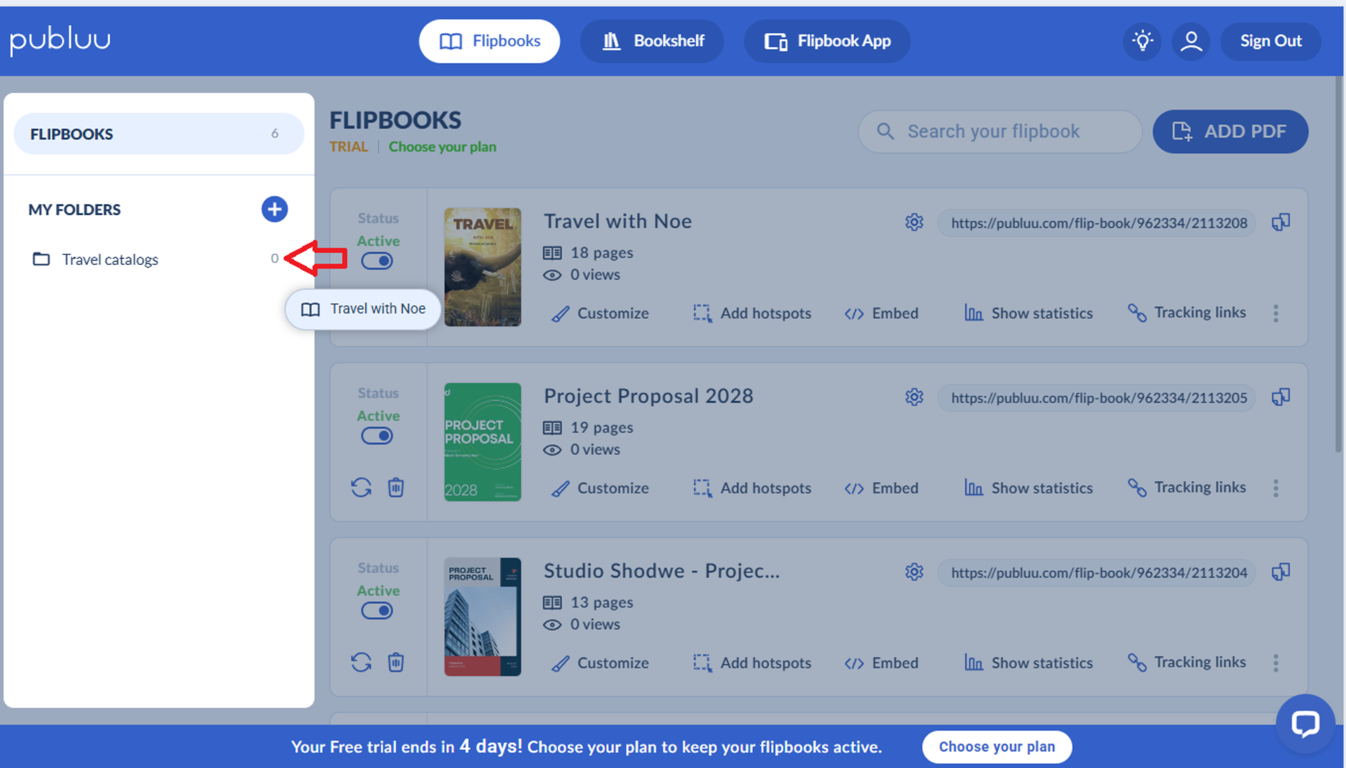
Once your folder is ready, from the main list you can start adding flipbooks to it. Simply hover your mouse over the flipbook you want, then drag it from the right panel into your chosen folder.
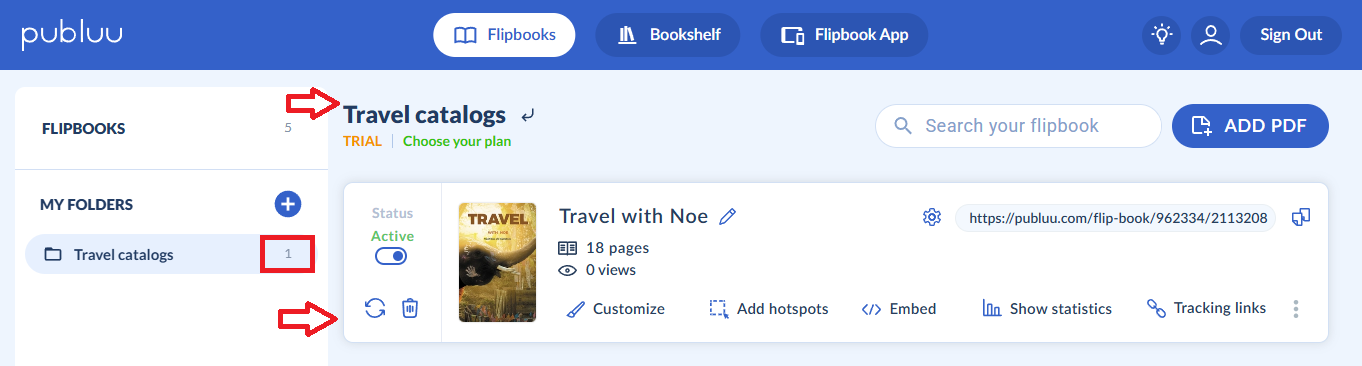
Once you’ve moved your flipbook, you’ll see it successfully placed in your folder. In the folder section, you can also check the number of flipbooks stored inside. Additionally, the folder’s name will be displayed in the upper left corner of the panel.
If you’d like to add more flipbooks to your folder, click the arrow next to the folder’s name or select the Flipbooks tab in the left panel and click on it.
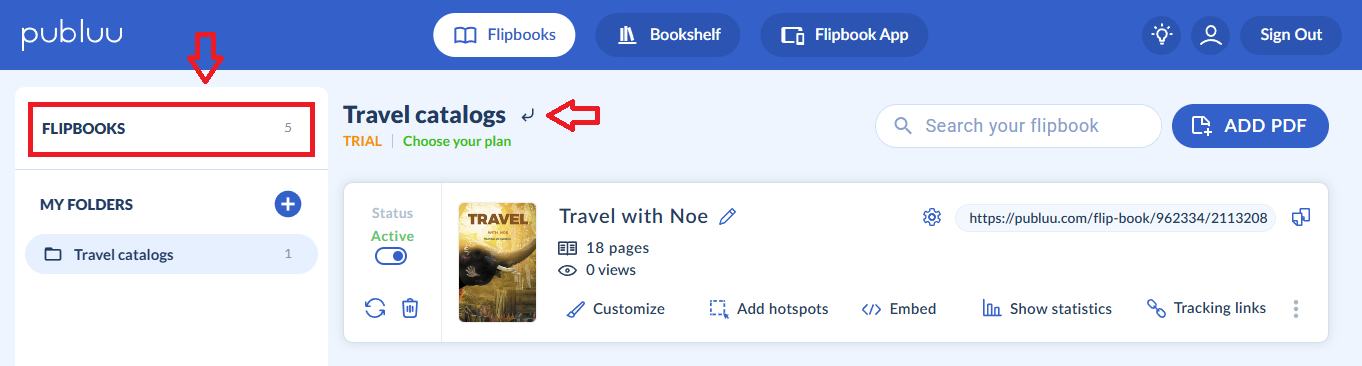
This will take you back to your main list of uploaded flipbooks from where you can drag any file into your desired folder again.
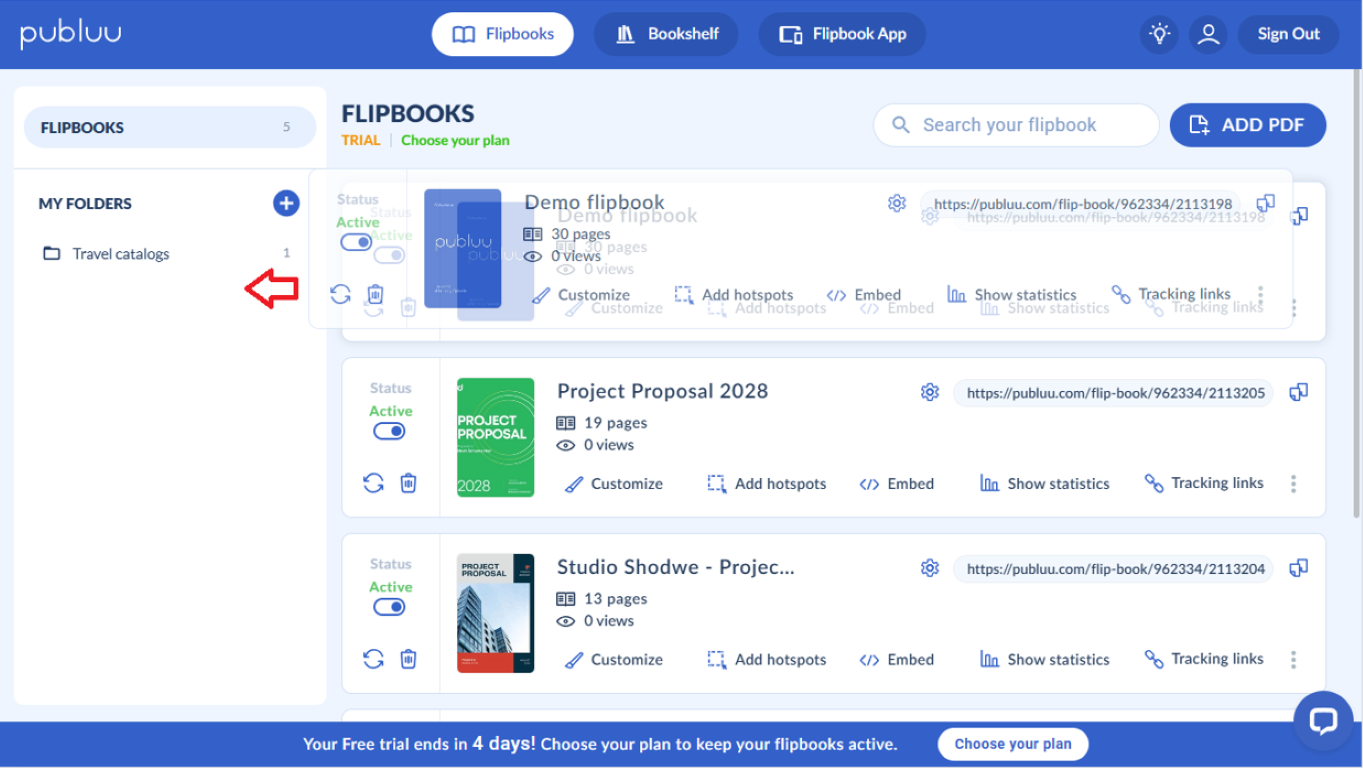
Please note that once you move your flipbooks from the main panel into a folder, they will no longer appear in the main list. This change will also be reflected in your flipbook count.
If you want to remove a flipbook from a folder, open the specific folder and drag the flipbook back into the main list.
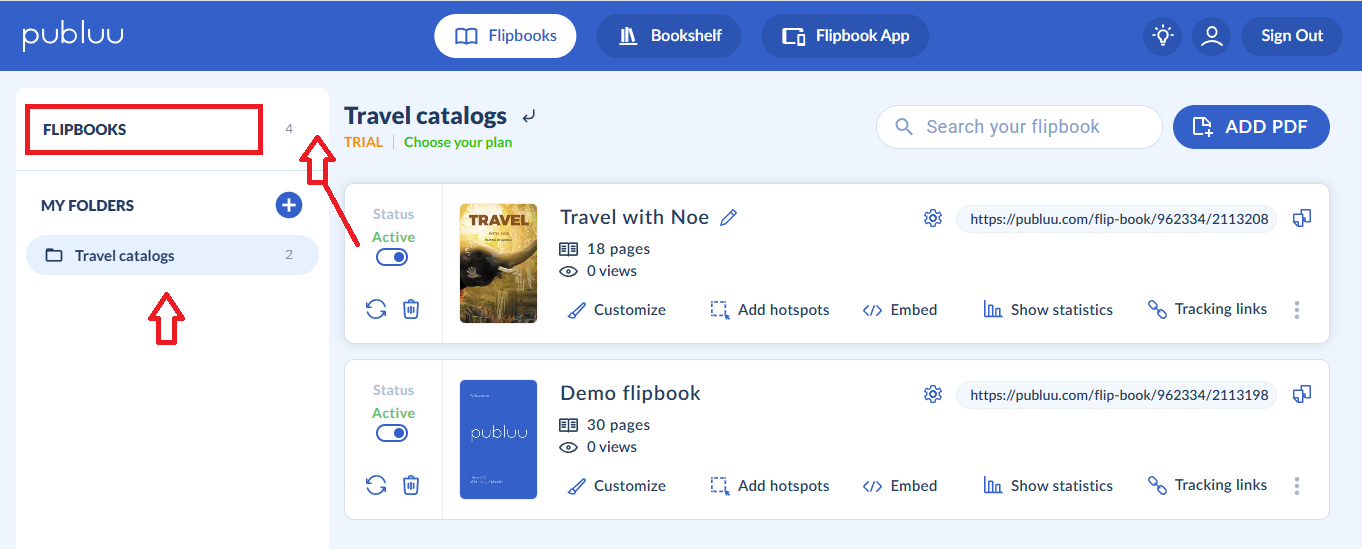
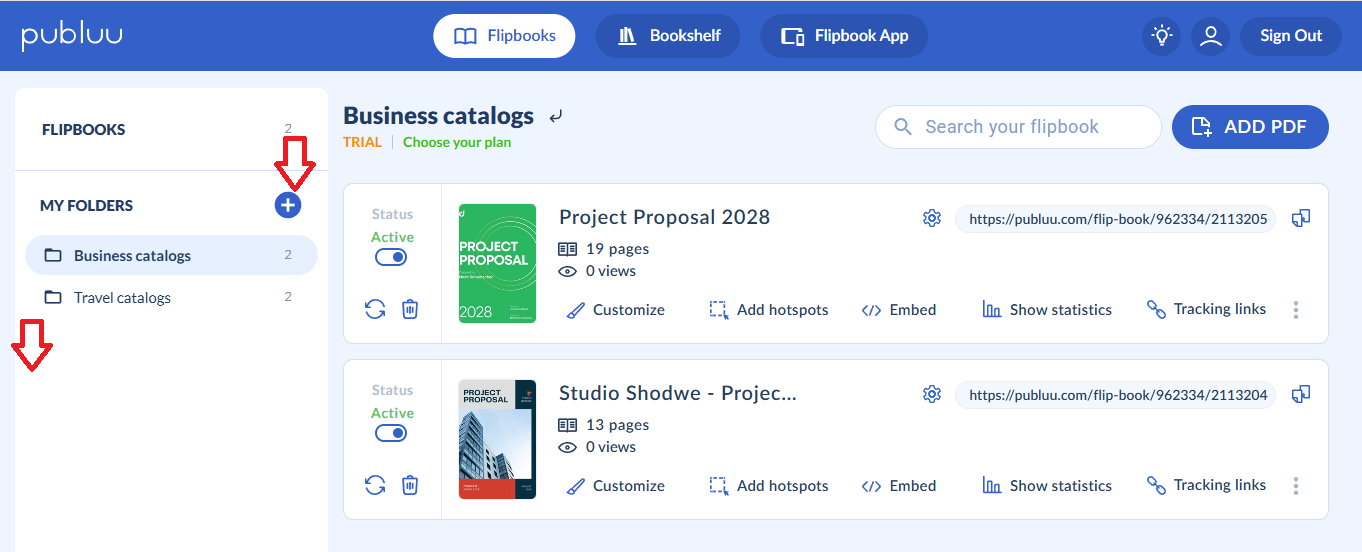
Additionally, as you create more folders in the folder section, by clicking the plus icon on the right, they will appear in a list on the left side of the menu.
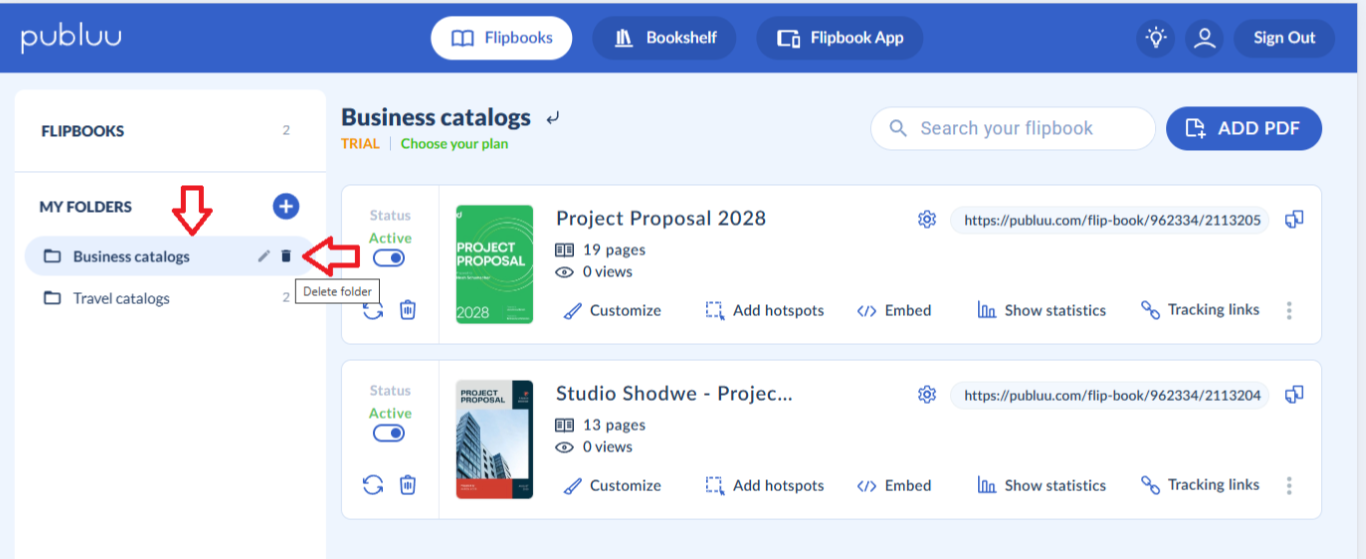
You can also delete folders at any time. Just hover your mouse over the folder tab (or click on it), then select the small bin icon 🗑️. The folder will then be removed from your folder list.
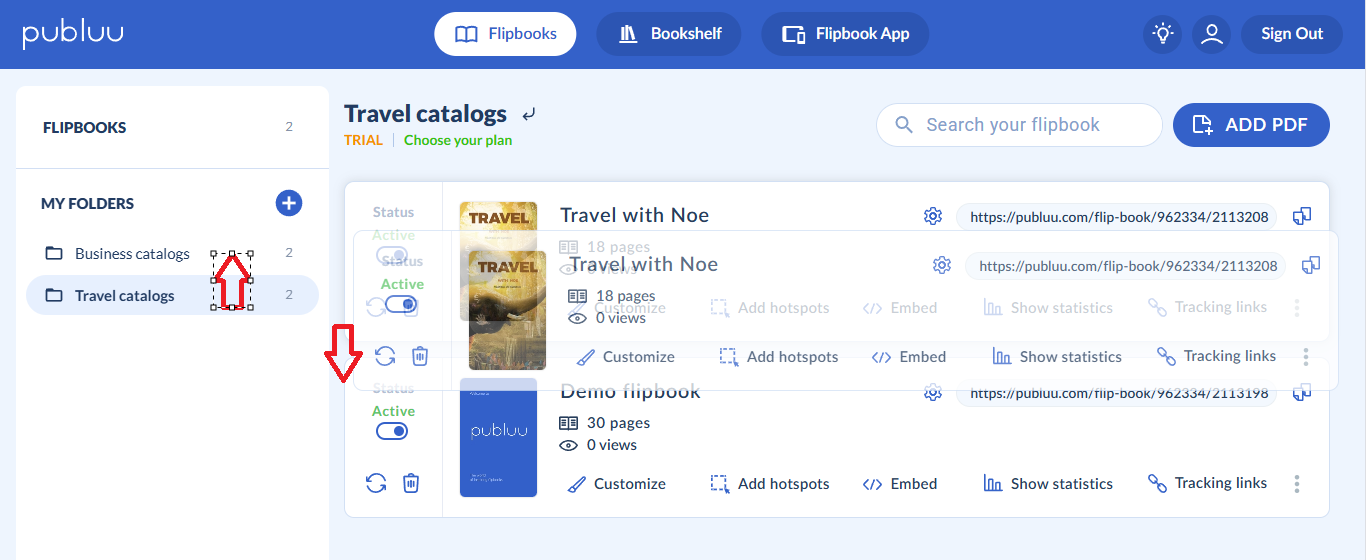
You can also change the order of your folders and flipbooks. Simply drag them up or down to arrange them in the order you prefer.
Great job! Now that you’ve set up your folders, you can easily enjoy using them to keep your flipbooks organized and make the most of your Publuu account.
You might be also interested in:
How can I add table of contents to my flipbook?
How to use a search function in a flipbook?
