


How to customize page turn effects in your flipbook?
At Publuu, we bring your content to life with animated page transitions that recreate the feeling of reading a real publication. Whether you want your flipbook to feel like flipping through a magazine (Flip), swiping flashcards (Card) or smoothly sliding between pages (Slide) you can choose the style that best fits your content and captures your audience’s attention.
🎥 Prefer watching instead of reading? Check out the video tutorial:
Follow these simple steps to set your preferred page turn effect:
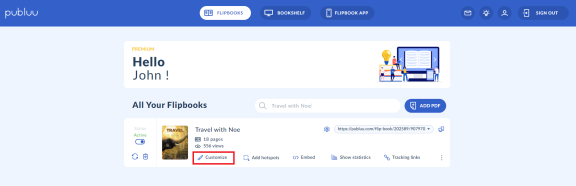
Log in to your Publuu account, locate the flipbook you want to edit, and click the Customize button.
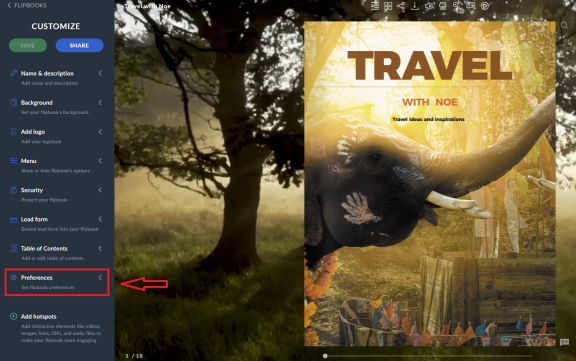
In the customization panel on the left, go to the Preferences tab.
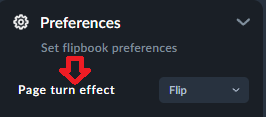
Find the Page Turn Effect section.
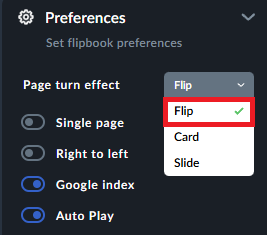
Click the dropdown menu next to where it says “Flip” to reveal the available page transition styles.
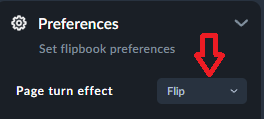
Choose the effect that fits your content best:
Flip – for a realistic, magazine-like page turning experience
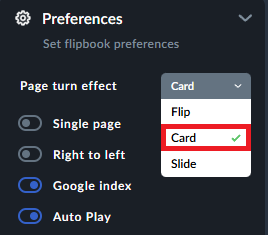
Card – for a smooth card-style transition
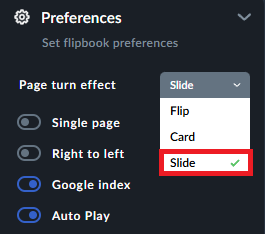
Slide – for a seamless, side-by-side page flow
Final Step
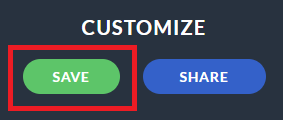
Once you’ve selected the transition that suits your flipbook, click the green “Save” button to apply your changes and make them live.
Your updated flipbook will instantly reflect the new page turn effect for your readers to enjoy.
You might be also interested in:
